Welcome to the Tips and Tricks page. Here you can find some tips and tutorials which can be useful for you. There are some tips to protect your computer from phishing, scams , viruses and many other threats which can expose your personal information. Also, You can find some helpful keyboard shortcuts to use. Computers are essential to many people around the world and these tips can help them to become more of an advanced user. In this section I will mostly talk about Windows and Internet Explorer.
1-Top 5 Internet Explorer shortcuts to use:
| To do what? | Keyboard shortcut |
|---|---|
| Open a new | Ctrl+T |
| Close tab | Ctrl+W |
| Print the current page | Ctrl+P |
| Refresh page | F5 |
| Switch between tabs | Ctrl+Tab |
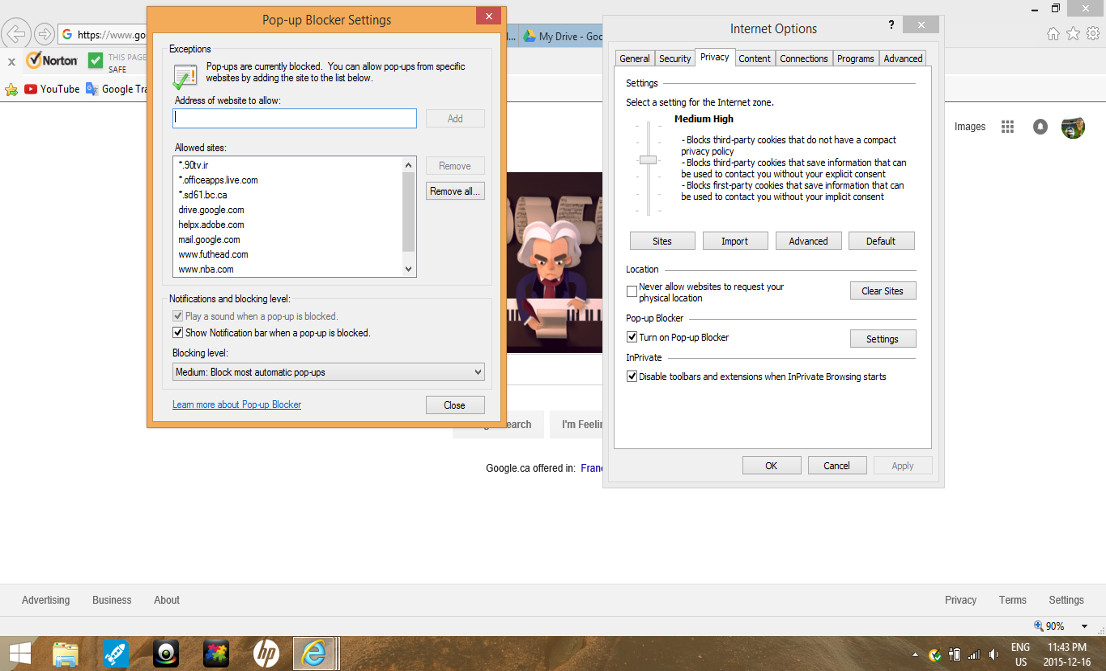
2-Check your privacy and security setting in Internet Explorer
To open Internet Explorer Security Setting:
- Open Internet Explorer
- Click on the tools button and then click on the Internet options
- Click on the Privacy tab
3-Turn on Tracking Protection
To turn Tracking Protection on:
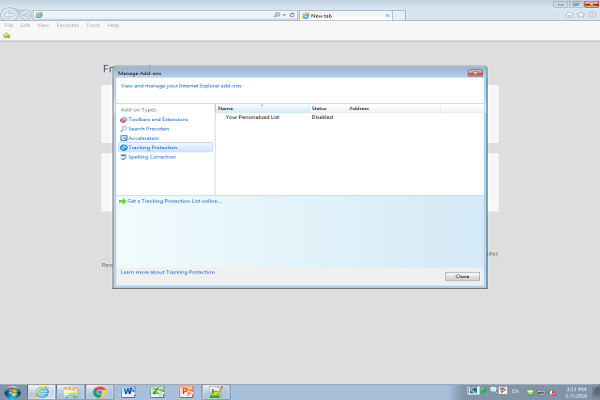
- Open Internet Explorer
- Click on Mange ad-ons
- Click on Tracking Protection
4-Antivirus Protection
Safety and Security are my biggest concerns when using PC but Antivirus and Malware protections will definitely help to reduce the risks of many threats online or offline. Some of you have Antivirus programs already but there are some great programs that are as good as the paid versions of many other products. You can visit the links below if you want to download or find more information about Avast and Anti-Virus Guard. They are one of the most popular Antivirus programs around the world.
5-Make your PC use less power
There are a lot of reasons to save power on your PC or laptop. If you have a gaming desktop or a laptop you might be concerned with the energy your device uses overtime. I have a laptop myself and if I don’t have my power supply/adapter or can’t plug it into anywhere my laptop would lose a lot of energy overtime. So I recommend anyone who has the same problem to just follow the steps below to reduce some of the problems with the energy use of your PC or laptop.
Back To Top of Page
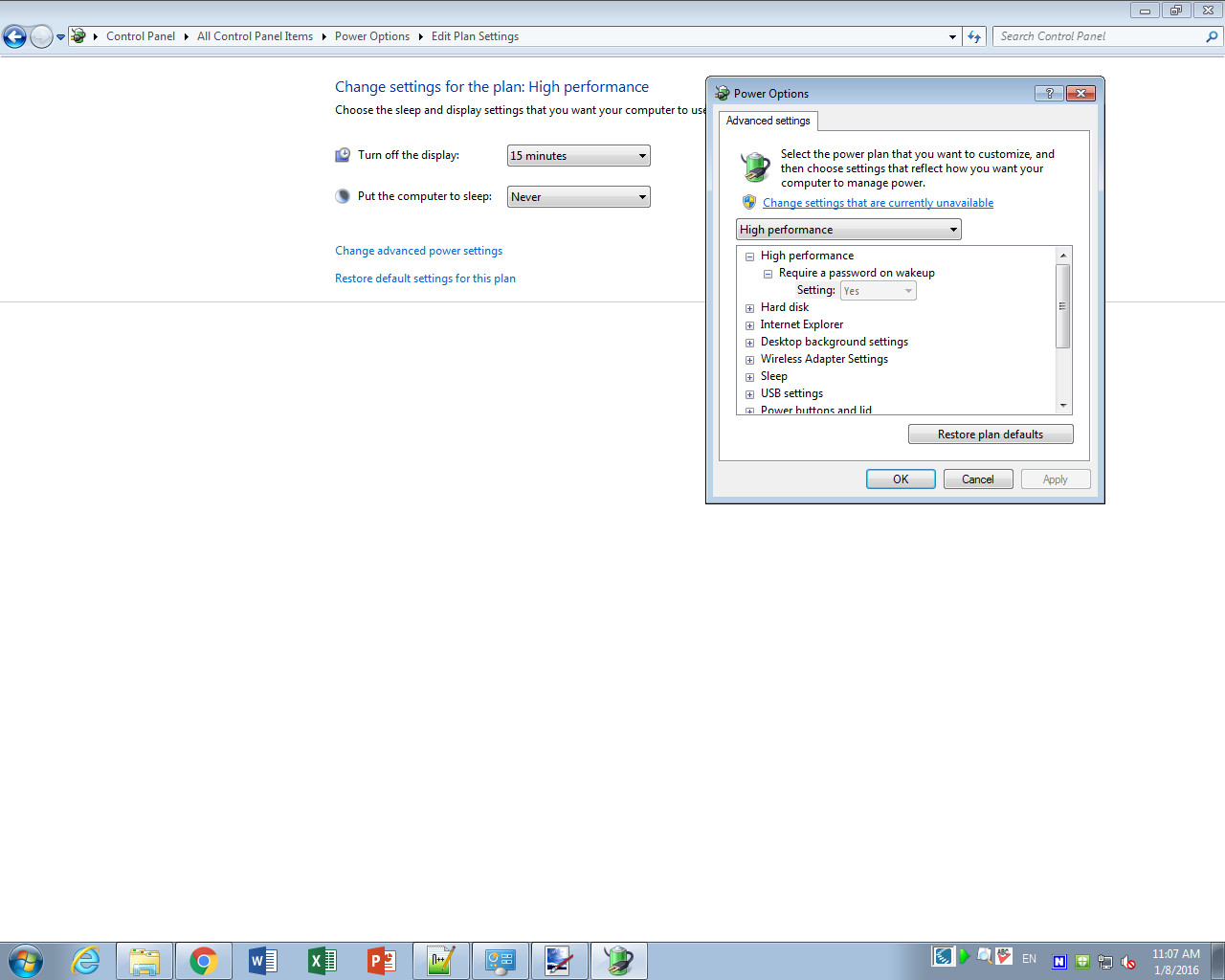
- Open Control Panel
- Search for Power Options
- Then go to “Choose When to turn off the display”
Back To Top of Page